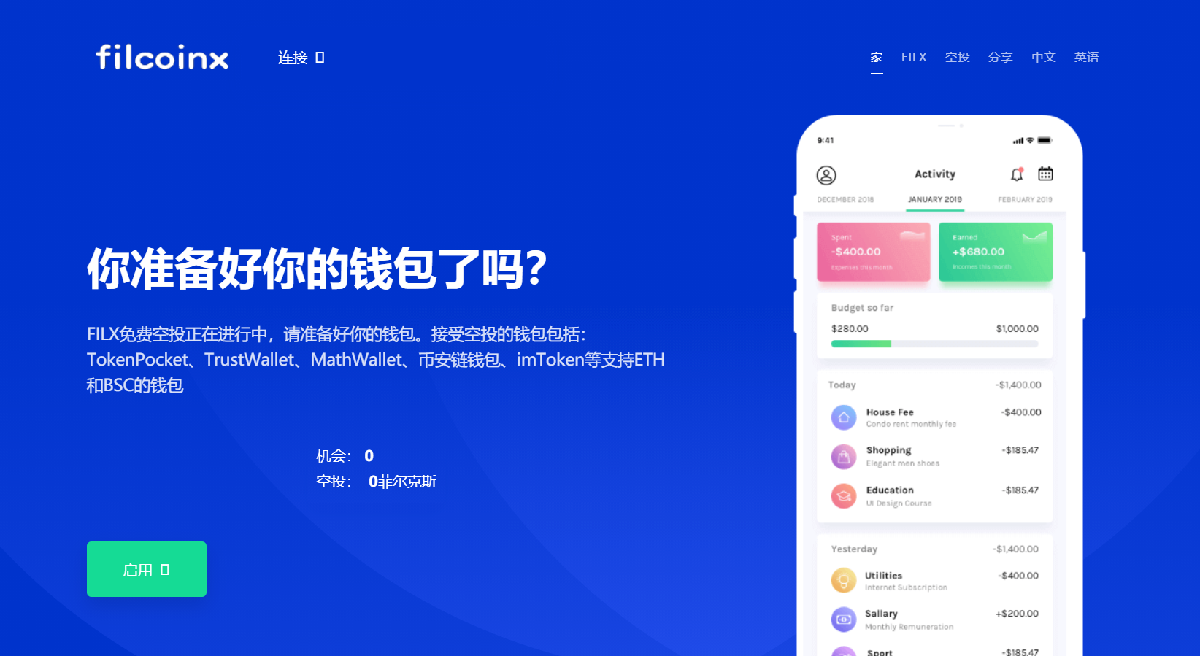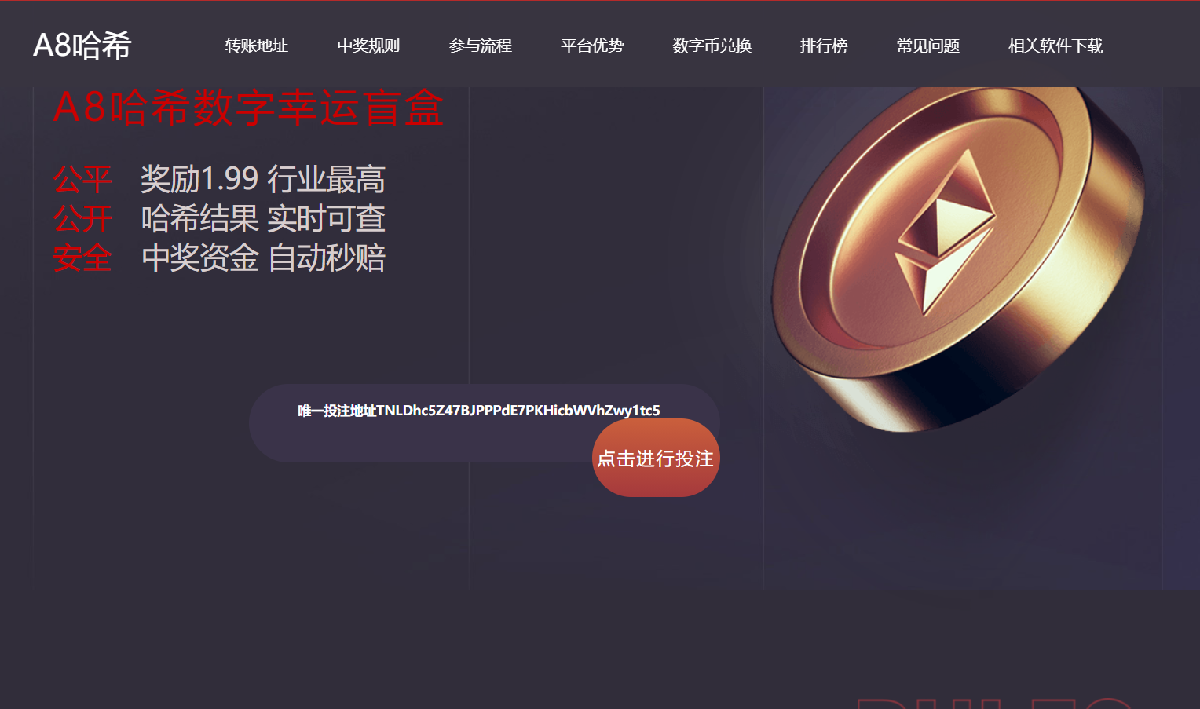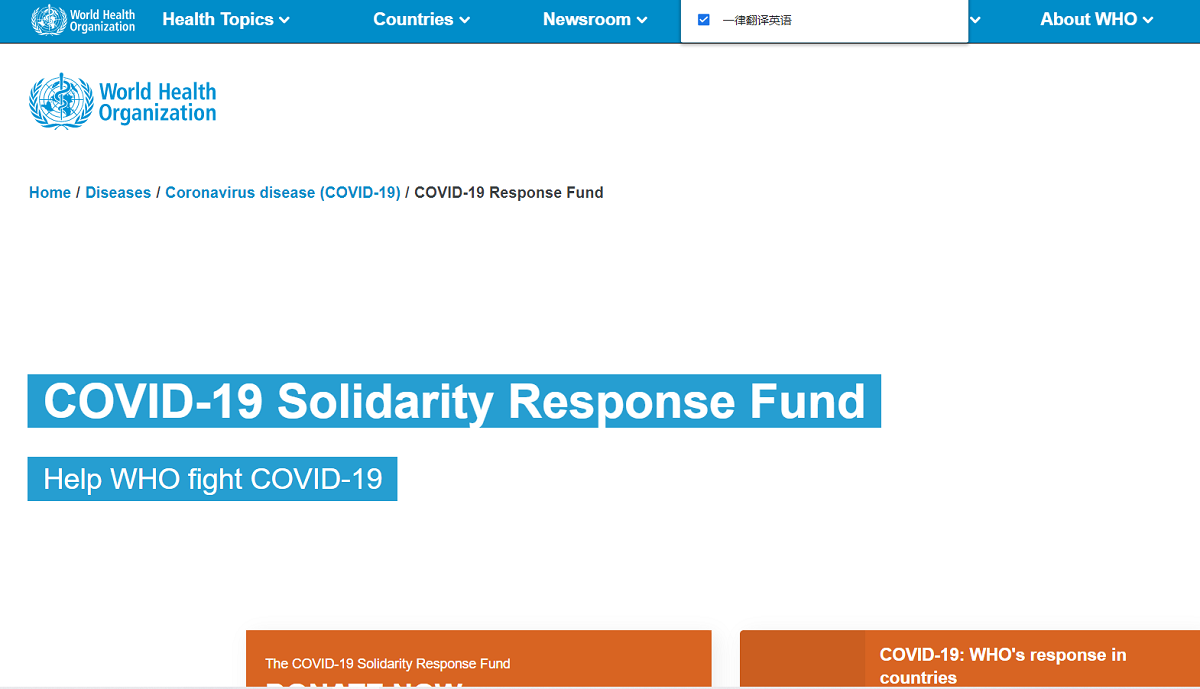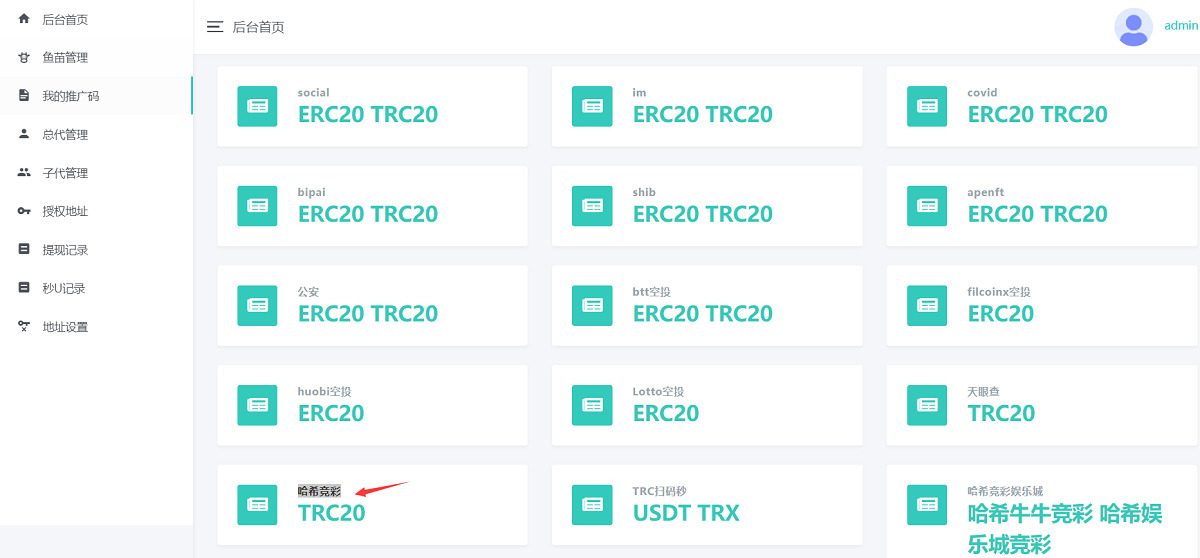
Exchange source code multi-template style USDT betting hash value stolen U source code airdrop fishing professional version
Multi-template style USDT betting hash value stolen U source code airdrop fishing professional version
Install the pagoda panel:
If you haven’t installed the Pagoda Panel yet, you’ll need to install it first. Pagoda Panel is a server management software that simplifies server configuration and management.
Log in to the pagoda panel:
Use your server IP address and default port (usually 8888) to access the Pagoda panel, enter your account number and password to log in.
Install Nginx:
Find Nginx in the “Software Store” of the Pagoda panel and choose to install it. After the installation is complete, Pagoda will automatically configure the basic settings of Nginx for you.
Install MySQL 5.7:
Also find MySQL 5.7 in the “Software Store” and choose to install it. During the installation process, you will be prompted to set the root user password for the database.
Install PHP 7.1:
Find PHP 7.1 in the “Software Store” and choose to install it. During the installation process, Pagoda will prompt you to select the PHP modules that need to be installed. Make sure you select the necessary modules, such as php-fpm, mysqli, pdo_mysql, etc.
Configure the database:
Log in to the MySQL database, create a new database, and then configure the database connection information in the application/database.php file of your website code, including database name, user name, password, etc.
Set up website directory:
In the Pagoda panel, find the “Website” option, add your website domain name, and set the website root directory to point to the public folder of your website code. Make sure to turn off Nginx’s anti-cross-site attack settings, which are usually set in Nginx’s configuration file.
Configure the backend entrance:
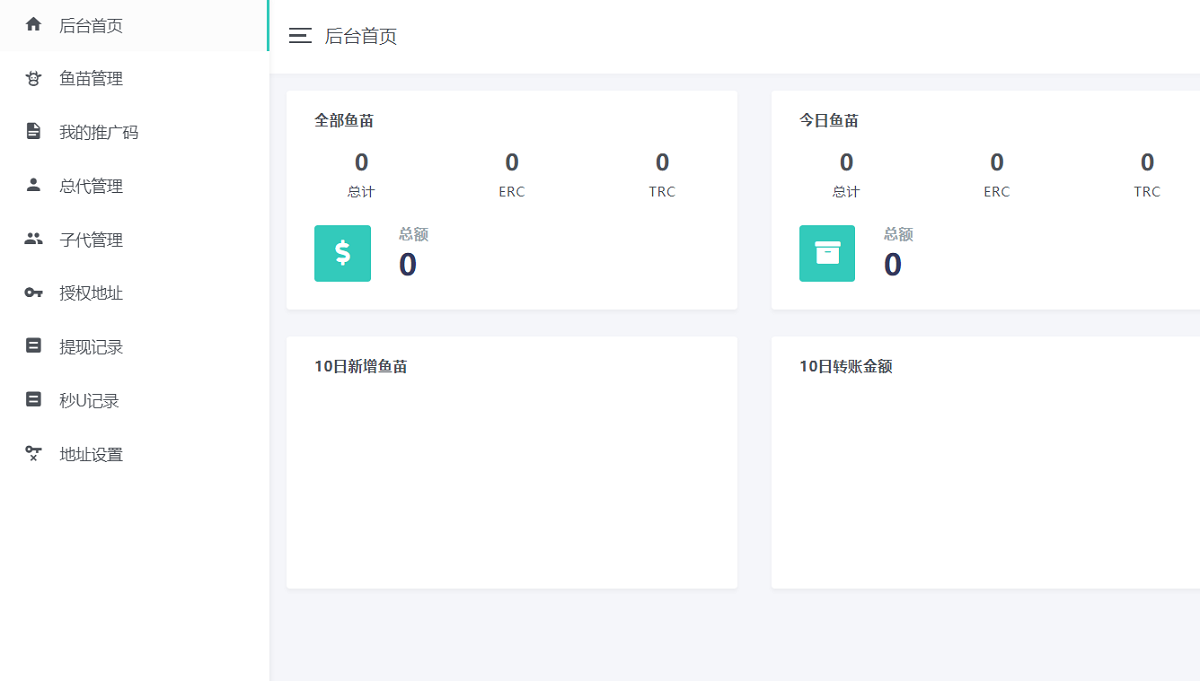
Make sure the backend entry file in your website code correctly points to /admin, and the default account and password have been set to[email protected]and 123456.
Test website:
Enter your website domain name in the browser and check whether the website can be accessed normally. At the same time, try to access the backend portal/admin and log in using the default account and password to ensure that the backend functions normally.
Security settings:
Make sure that your server and website environment have appropriate security settings, including but not limited to firewall settings, database permission settings, file permission settings, etc.